Productivity

Contract Annotations: Initials, Dates, and Highlighted Clauses

Written by John SmithOctober 9, 2025

Contracts work when every clause is clear. You must mark changes, add initials, and insert dates without breaking the layout. Printing and scanning adds risk and wastes time. In this guide, you will learn how to annotate contract PDF online using FlexFiles. You will highlight clauses, drop sticky notes, add initials, and insert dates with clean results. All edits happen in your browser for better privacy.

Why annotate contract PDFs online?

Contract work moves fast. You review, redline, and approve. Digital annotation gives you speed and clarity without version chaos.

  • Keep formatting intact
  • Share a single source of truth
  • Reduce print-sign-scan loops
  • Preserve an audit-friendly trail

With FlexFiles, you can do this on any modern browser. No installs. No heavy setup. You keep control of the file from start to finish.

What you can annotate in a contract

A good annotation workflow is focused. Use only what helps the next person act:

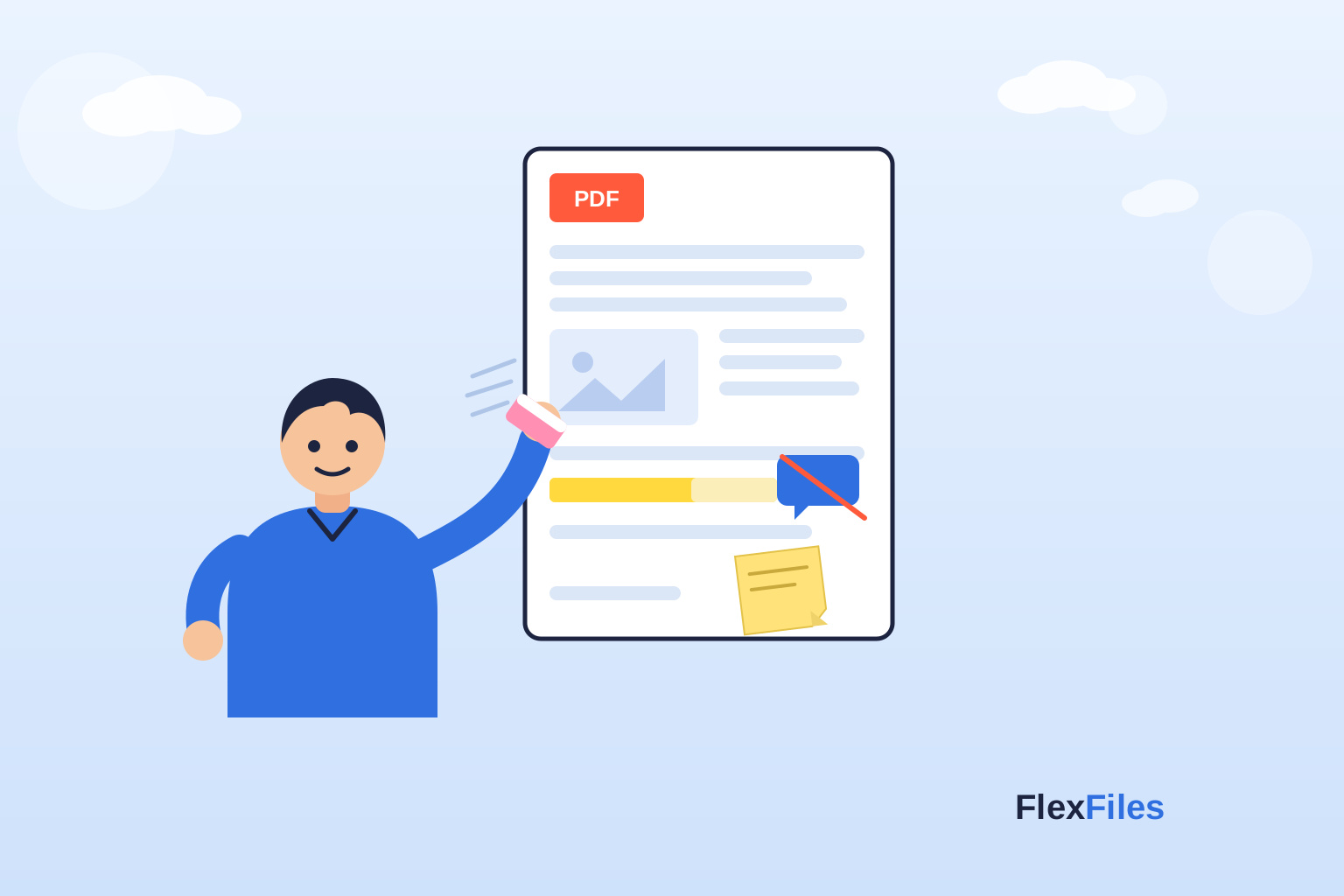
  • Highlights: draw attention to key clauses, numbers, and dates
  • Sticky notes / comments: explain a change, add context, or request edits
  • Initial boxes: confirm changes on each page or clause
  • Date stamps: record the effective date or amendment date
  • Underlines and shapes: mark ranges, sections, or signature lines
  • Hyperlinks: reference laws, schedules, or earlier sections
  • Watermarks: label drafts or internal-only versions

Why choose FlexFiles for contract annotation

FlexFiles is designed for simple and secure document work. It focuses on the actions lawyers, founders, and managers use daily.

  • In-browser editing: processing runs locally in your tab
  • No server storage: your files are not stored on FlexFiles servers
  • Free to use: no hidden trials or surprise fees
  • Precise tools: highlights, notes, text, shapes, links, and signatures
  • Page control: reorder, remove, or add pages when amending exhibits
  • Clean export: save selected or all pages as PDF, PNG, or JPEG

Try it here: FlexFiles PDF editor.

Step-by-step: annotate a contract PDF online (fast)

Follow these steps to get a stable, readable result:

  • Open FlexFiles and choose the PDF editor.
  • Upload your contract PDF. Use the original, not a photo.
  • Zoom to 125–150%. Read headings and figures clearly.
  • Highlight clauses. Select the highlight tool and drag over text. Use a single color for emphasis and a second color for risk items.
  • Add sticky notes. Place notes next to the clause. Keep each note short and action-focused.
  • Insert initials. Use the text tool to place your initials in small caps near the change or in the initials box.
  • Add dates. Insert a text field with the effective date. Use ISO format (YYYY-MM-DD) to avoid confusion.
  • Underline key numbers. Use a line or rectangle with low opacity to mark totals or caps.
  • Add links. With the link tool, point to referenced sections or external documents.
  • Review for clarity. Hide clutter. Keep only what helps approval.
  • Export. Save as PDF for the final review. Export selected pages if you only changed an addendum.

Best practices for initials, dates, and highlighted clauses

Small changes can alter meaning. Make them visible and unambiguous.

Initials

  • Place initials near the changed clause or at the page corner if the contract expects it
  • Use a consistent size and font
  • Keep color black or dark gray for print fidelity
  • Avoid overlapping text or lines

Dates

  • Use YYYY-MM-DD format to avoid ambiguity
  • Add time zones only if relevant to performance or delivery
  • Place dates near the signature block, amendment header, or clause reference

Highlights

  • Limit yourself to two colors: one for review, one for risk
  • Avoid full-page floods
  • Use medium opacity so text stays readable
  • Pair highlight with a short sticky note when action is required

Building a clear review workflow

A contract is a team sport. Make it easy for the next person to act.

  • Start with a quick “review map” in the first page note: list sections you changed
  • Assign each note to a role: legal, finance, or operations
  • Keep comments short and directive
  • Export selected pages for a focused thread when only a few sections changed

Using signatures and initials without breaking layout

FlexFiles supports typed, drawn, or image-based signatures. Use them wisely.

  • Typed signature: clean and consistent, good for internal approvals
  • Drawn signature: closer to handwritten style
  • Image signature: upload a high-resolution PNG with a transparent background

Place signatures in designated blocks only. For initials, set a small text element or use a compact drawn mark. Keep it aligned and readable.

Redaction vs. erasing: protect sensitive data

Contracts often include private data. Redaction should hide content for good.

  • Use the erase or shape tools to cover sensitive content before sharing
  • Replace data with placeholders like —redacted—
  • Re-export and review the new PDF to ensure removed content is not selectable

Manage exhibits and page order during amendments

Amendments often add schedules or swap pages.

  • Reorder pages to keep exhibits in the right sequence
  • Add new pages for replacement schedules
  • Remove old pages when superseded
  • Update cross-references and add a note where you changed numbering

Keep the document readable on print

Even when you work online, print still matters.

  • Use high-contrast text (black or dark gray)
  • Keep highlights subtle so text remains clear on black-and-white printers
  • Use standard fonts for added text (e.g., Arial, Times, or the contract’s original font)
  • Avoid placing notes over text; place them in the margin

Common mistakes to avoid

  • Over-highlighting entire sections
  • Using many colors and shapes at once
  • Adding long paragraphs inside sticky notes
  • Placing initials without context
  • Saving to images when a PDF is required for signing flows

Security, privacy, and trust

FlexFiles keeps contract work private and transparent.

  • Edits happen in your browser for better control
  • Files are not stored on FlexFiles servers
  • No hidden charges or trials
  • Clean exports without unexpected branding

Open the editor here: annotate a contract PDF online with FlexFiles.

Quick checklist before you send the contract

  • Highlights limited and clear
  • All initials placed near related changes
  • Dates in ISO format
  • Notes short and role-based
  • Page order correct with updated exhibits
  • Final export as PDF, readable on print

FlexFiles features that help with contracts

FlexFiles offers a focused toolkit that maps well to legal workflows:

  • Free draw and highlights for fast markup
  • Text and image tools for corrections and logos
  • Clickable links for clause references and exhibits
  • Sticky notes for instructions and questions
  • Shapes for boxes, underlines, and callouts
  • Watermarks for DRAFT or INTERNAL labels
  • Page tools to reorder, remove, or add pages
  • Merge files and annotate together for amendments
  • Export selected or all pages as PDF, PNG, or JPEG
  • Create simple fillable form elements where needed

Conclusion

You can annotate contract PDFs online with speed and clarity when you use the right tools. With FlexFiles, you highlight key clauses, add initials, and insert dates in a secure in-browser workflow. You control the file at every step and export a clean, readable PDF for approval. Keep your markup simple. Focus on what helps the next person act. That is how you close deals faster and protect intent in every clause.