Productivity
Marking Up a Slide Deck PDF Before You Present
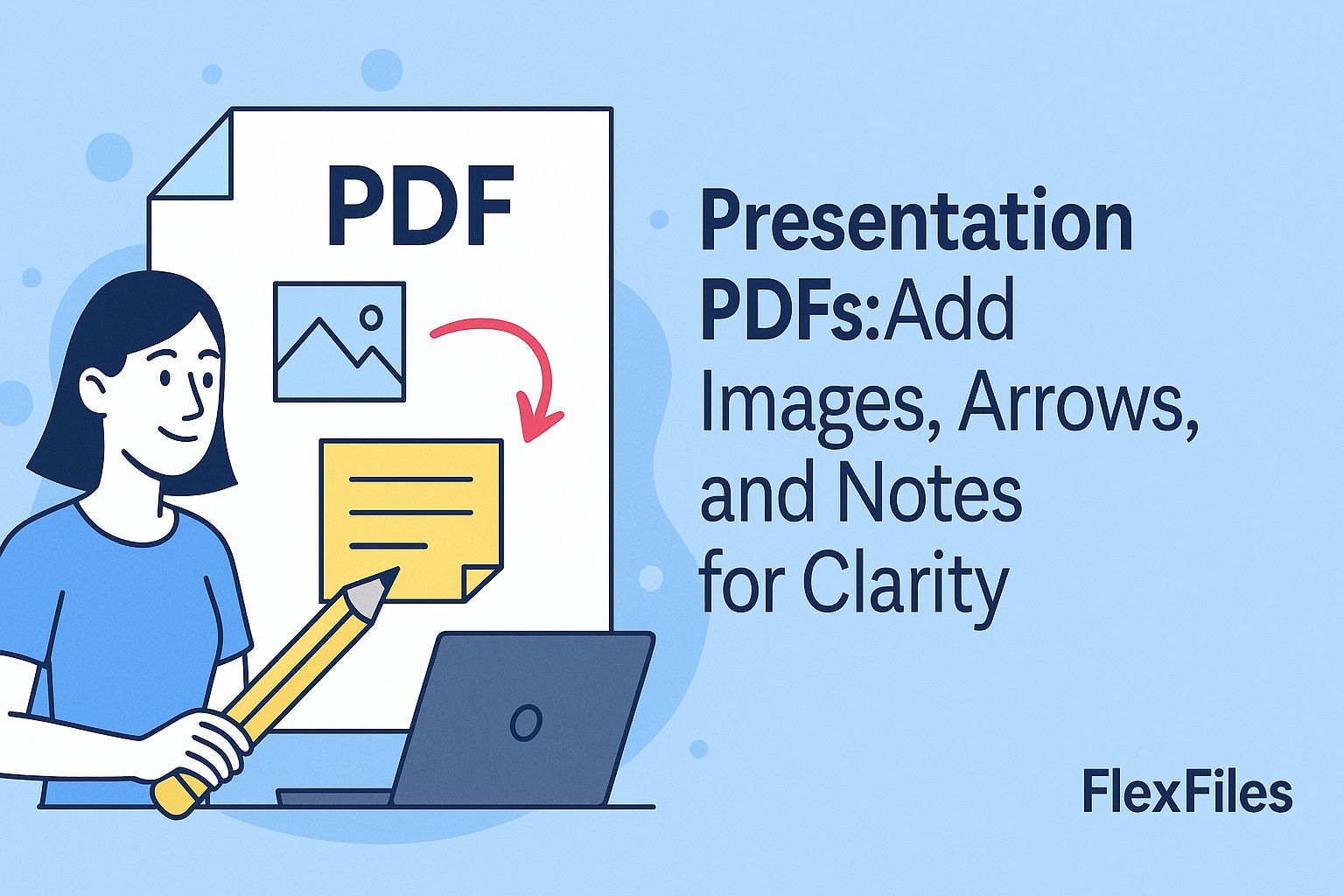
A slide deck exported to PDF is often the version people actually review — but pointing someone to "the chart on slide 12" is slower than just pointing at it.
FlexFiles PDF Editor lets you add arrows, notes, and images directly onto exported slides.
Where This Comes Up
- Sales decks — pointing to a pricing tier or feature row.
- Product reviews — marking a UI change or design note on a screenshot slide.
- Investor updates — highlighting the metric or growth line that matters.
- Client handoffs — showing what changed since the last version.
How to Mark Up a Slide Deck PDF
- Upload the exported deck.
- Use the arrow tool to point at a specific chart, number, or label.
- Add a sticky note where a slide needs context that isn't on the page.
- Highlight a metric or headline you want the reader to notice first.
- Export the marked-up version to share back.
Keeping the Slide Style Intact
The point of annotating rather than rebuilding is that the layout stays exactly as designed — you're adding a layer on top, not editing the slide itself. Keep arrows and notes to the one or two things that actually need pointing out.
Conclusion
A marked-up slide gets the point across faster than a paragraph of feedback in an email. FlexFiles adds that layer without touching the original deck.