Productivity

Best Free Alternative to Paid PDF Editors

Written by John SmithSeptember 18, 2025

PDF files are the standard format for documents in education, business, and everyday life. They preserve formatting across devices, protect sensitive content, and are easy to share. But when it comes to editing PDFs, many people assume they must pay for expensive software like Adobe Acrobat or other premium PDF suites. The reality is very different. Today, free online PDF editors can perform the same essential tasks without cost, signup, or hidden limitations.

If you are tired of high subscription fees, complicated installations, or bloated software, this guide will introduce you to the best free alternative to paid PDF editors. We will walk through what makes an editor truly useful, explore key features, and explain how you can use a platform like FlexFiles PDF Editor to manage your documents securely and efficiently.

Paid PDF tools like Adobe Acrobat Pro, Nitro PDF, or Foxit PhantomPDF are powerful but come at a steep cost. Many users do not need all the advanced enterprise features they offer. Here’s why exploring free alternatives makes sense:

  • High Cost of Subscriptions – Monthly or annual plans can be expensive for students, freelancers, and small businesses.
  • Overloaded with Features – Paid tools often include advanced functions most casual users never use.
  • Software Installation – Many paid editors require downloads that consume space and slow down devices.
  • Licensing Restrictions – Some licenses limit the number of devices you can use.
  • Better Online Options Available – Modern free online editors offer core functionality directly in your browser.

If your primary goal is to edit, annotate, merge, or sign PDFs, you do not need to pay.

What to Look for in a Free PDF Editor

Not all free tools are equal. Some limit editing, add watermarks, or force you to create an account. A reliable free alternative should:

  • Allow full editing without watermarks.
  • Provide text, image, and annotation tools.
  • Offer page management options like merge, split, and rearrange.
  • Export in common formats (PDF, PNG, JPG).
  • Work without downloads or signup.
  • Keep files secure with options like password protection.

This is where FlexFiles Free PDF Editor stands out as one of the best options for beginners and advanced users alike.

Introducing FlexFiles: The Best Free Alternative

FlexFiles PDF Editor is a web-based tool that combines simplicity with powerful features. Unlike many free editors, it has no hidden costs, no signup requirement, and no watermarks.

Here’s how it works:

  • Upload your PDF.
  • Use the editor tools to make changes.
  • Preview your edits instantly.
  • Download your file or create a secure shareable link.

You can even configure your shareable link with an expiry date or password protection, giving you control over who accesses your document.

Paid tools advertise a wide list of features, but the truth is most users only need a handful of functions. FlexFiles covers all the essentials:

  • Add and Edit Text: Quickly correct typos, update addresses, or insert new information into your document.
  • Insert Images: Add logos, graphics, or photos directly into your PDF. Resize and reposition them with drag-and-drop simplicity.
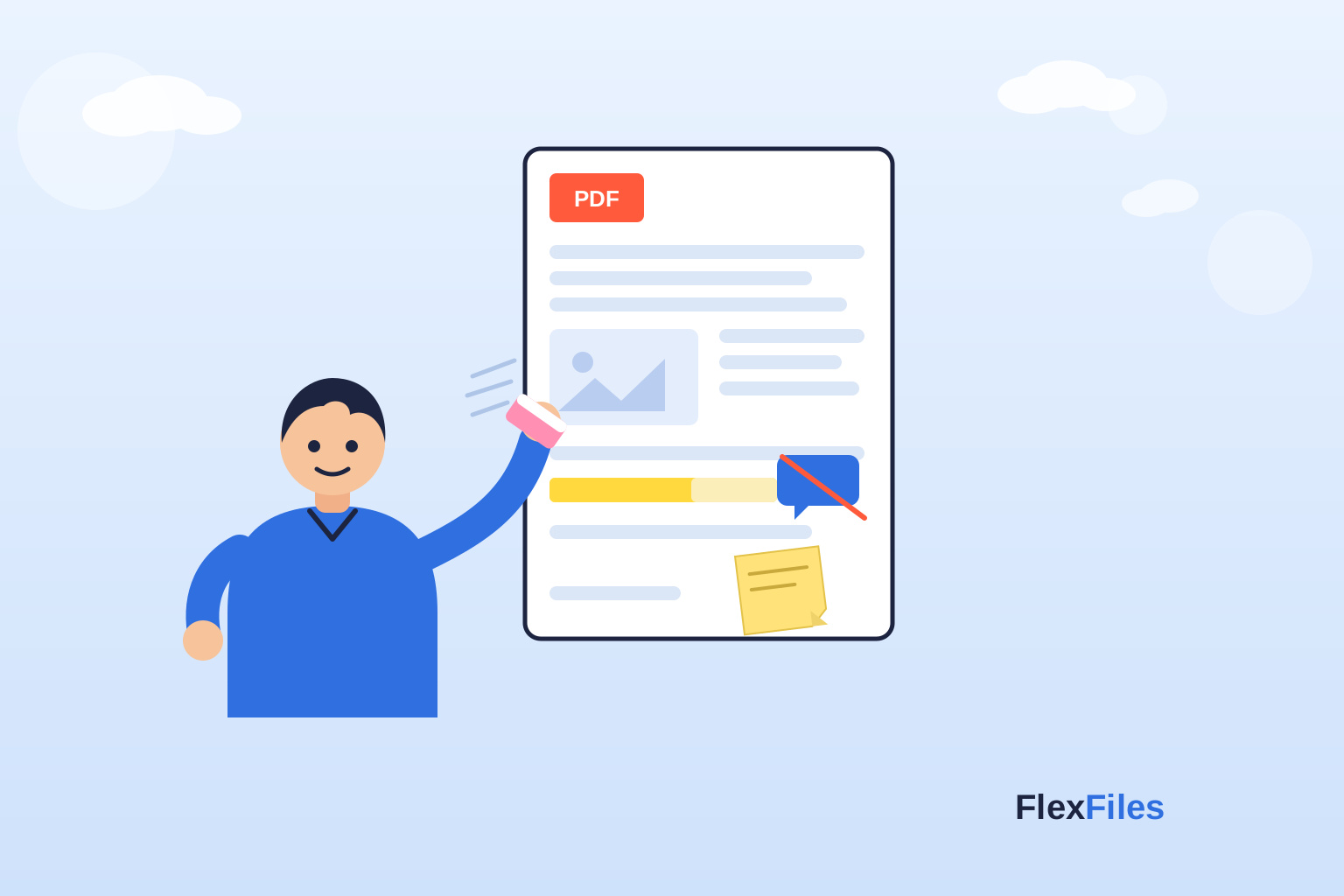
  • Highlight and Annotate: Mark important details using the highlighter or annotation tools—ideal for studying or reviewing contracts.
  • Shapes and Free Draw Tool: Insert arrows, rectangles, or freehand drawings to emphasize details.
  • Sticky Notes: Leave feedback or reminders within your PDF using the sticky note feature.
  • Signature Support: Sign documents digitally without printing or scanning. You can draw, type, or upload your signature.
  • Erase and Correct: Easily remove mistakes or unwanted marks.
  • Page Management: Rearrange, delete, or rotate pages with ease. You can also merge multiple PDFs and edit them together.
  • Export Options: Export your work in PDF, JPG, or PNG formats. You can choose specific pages or export everything at once.
  • Secure Sharing: Generate shareable links that can be locked with a password or set to expire—something even many paid tools lack.

When compared to Adobe Acrobat or Nitro PDF, FlexFiles offers a lightweight, accessible experience. Here’s why it makes an excellent free alternative:

  • No Subscription Fees – 100% free for core editing.
  • Browser-Based – Works on any device without installation.
  • Ease of Use – Designed for beginners, no training required.
  • All-in-One – Edit, merge, annotate, and sign in one place.
  • Secure – Options for password protection and expiry-based sharing.

While premium editors offer advanced automation, batch processing, or deep integration with enterprise workflows, most individuals and small teams never use those features. FlexFiles bridges the gap by delivering what most people actually need.

Step-by-Step Guide: Editing PDFs for Free

Here’s a quick tutorial for first-time users:

  • Visit the Editor – Go to FlexFiles PDF Editor
  • Upload Your PDF – Drag your file into the editor.
  • Choose Tools – Add text, highlight, insert images, or rearrange pages.
  • Use Layers Panel – Manage elements like text, shapes, and images. Move items forward or backward for perfect alignment.
  • Preview Changes – Check your file in real time.
  • Export or Share – Download as PDF, JPG, or PNG, or generate a secure link.

It’s as simple as three steps: upload, edit, and save.

Common Questions Users Ask

When exploring free alternatives, users often raise questions. Let’s answer them naturally:

  • Will my documents remain private? Yes, FlexFiles ensures files are handled securely, and you can add password protection to shared links.
  • Can I edit scanned PDFs? Yes, though scanned text may be treated as an image. You can still annotate, highlight, or overlay text.
  • Do I need to create an account? No signup is required—you can start editing immediately.
  • Are there limits on file size? FlexFiles supports standard file sizes commonly used by individuals and businesses.
  • Does it work on mobile? Yes, since it runs in your browser, you can use it on smartphones and tablets.

Who Benefits Most From FlexFiles?

Because it is free and easy to use, FlexFiles serves a wide audience:

  • Students – Annotate notes, highlight textbooks, or merge assignments.
  • Teachers – Add instructions, feedback, or mark answers in PDF worksheets.
  • Freelancers – Sign contracts, edit invoices, and merge client documents.
  • Small Businesses – Update contracts, add logos, and secure documents without buying licenses.
  • General Users – Make quick edits, share secure links, or manage personal files.

Why This is the Best Free Alternative

The best tool is one that balances functionality, accessibility, and cost. Paid editors may advertise more, but for 90% of users, FlexFiles offers everything needed—without the price tag.

By combining editing, annotation, page management, merging, secure sharing, and export options in one free online tool, FlexFiles stands out as the most practical alternative to expensive PDF editors.

Conclusion

You don’t need to spend money on expensive software to edit PDFs effectively. Free tools like FlexFiles PDF Editor give you the power to add text, images, highlights, shapes, notes, signatures, and more—all within your browser. You can merge, rearrange, and export PDFs in multiple formats. Most importantly, you can secure your documents with password-protected links.

For students, freelancers, professionals, and anyone who just needs simple PDF editing, FlexFiles is the best free alternative to paid PDF editors. Try it today and experience how easy managing PDFs can be—without hidden costs or signups.