Chat with Your Documents: How AI Document Assistant Works
Hunting through a folder of contracts for one renewal clause, or re-reading a proposal to find a number you remember being somewhere in it, is the kind of task a question should be able to replace. FlexFiles AI Document Assistant lets you ask that question directly and get an answer with the exact source cited, across your whole workspace, not one file at a time.
What Makes This Different From a Simple PDF Chatbot
Most "chat with your PDF" tools work on a single file you've just uploaded, in isolation from everything else you have. AI Document Assistant works the other way round: index your workspace documents once, and every question after that searches across all of them together — a question can pull its answer from a contract in one folder and a related email in another, in the same response.
How It Actually Finds the Answer
Under the hood, a search combines two different methods and fuses the results: keyword search (BM25, the same family of ranking used by real search engines) for exact terms, names, and figures, and vector semantic search for matching the meaning of your question even when the document's wording doesn't match it word for word.
Each method alone misses things the other one catches — a keyword search can miss a clause that answers your question but never uses your exact words, while a pure semantic search can drift away from an exact number or name you actually need verbatim. Combining both, with a relevance floor that keeps weakly related content from being pulled in just because nothing stronger was competing, is what lets a single question search a whole workspace instead of one document you'd have to pick in advance.
Every Answer Comes With Citations
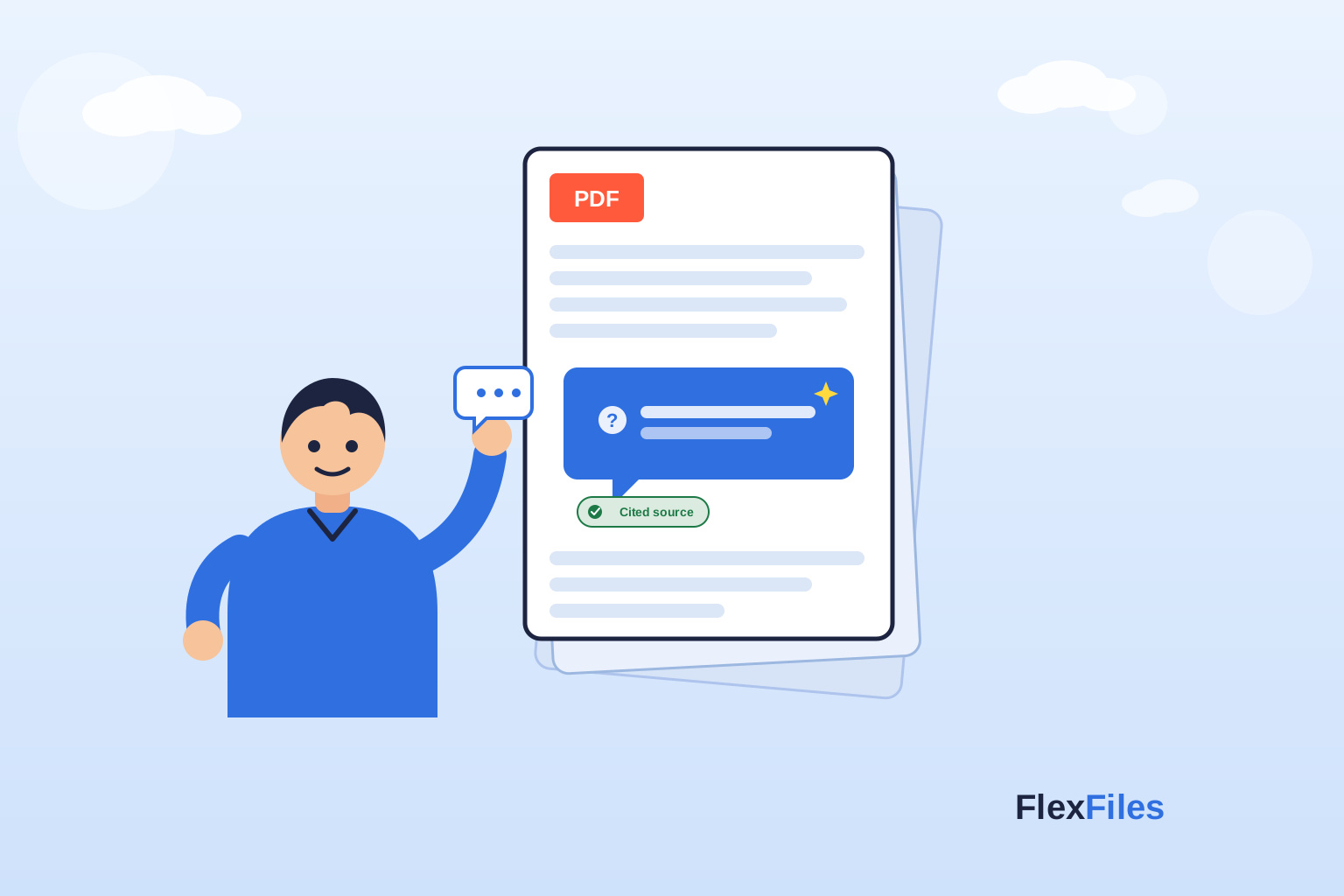
Answers are built from the passages retrieved for your question, not generated freely — each claim traces back to the specific document and section it came from, so an answer is something you can verify by opening the source, not something you have to take on faith.
Ask a question, then ask a follow-up the same way you would in a conversation — "What are the payment terms?" followed by "Any late fees?" — and the assistant keeps the context of what you already asked.
Permissions Are Enforced at the Search Layer, Not After
In a shared workspace, a search tool that finds the right answer but surfaces it from a folder you shouldn't have access to has failed in a way that matters more than getting the answer wrong. Folder permissions are applied as part of retrieval itself — a document you can't open never enters the results in the first place, rather than being fetched and filtered out afterward.
Compare, Save Searches, and Get Alerted to Changes
Beyond one-off questions, AI Document Assistant handles a few recurring workspace tasks:
Compare mode extracts key terms from multiple documents — proposals, contracts, quotes — side by side, and the comparison can be exported for sharing.
Saved searches let you keep a query on file and set an alert so you're notified if something changes across the documents it covers, instead of re-running the same search manually to check.
How to Get Started
Getting set up takes a few steps:
1. Upload and organise your workspace documents into folders, the same as normal.
2. Open AI Document Assistant and let it index them — chunking, embedding, and applying your folder permissions as it goes.
3. Ask a question in plain language, follow up conversationally, and open the citations on any answer to check the source.
4. Use Compare mode or save a search with an alert for anything you'll want to check again later.
Conclusion
Reading through a folder of documents to find one answer doesn't scale, and a tool that only chats with one uploaded file at a time doesn't solve the actual problem. AI Document Assistant searches your whole workspace with hybrid retrieval, cites every answer back to its source, and respects folder permissions by construction rather than as an afterthought. Try AI Document Assistant and ask your workspace a question directly.