Convert JPG Images to PDF with Full Control Online
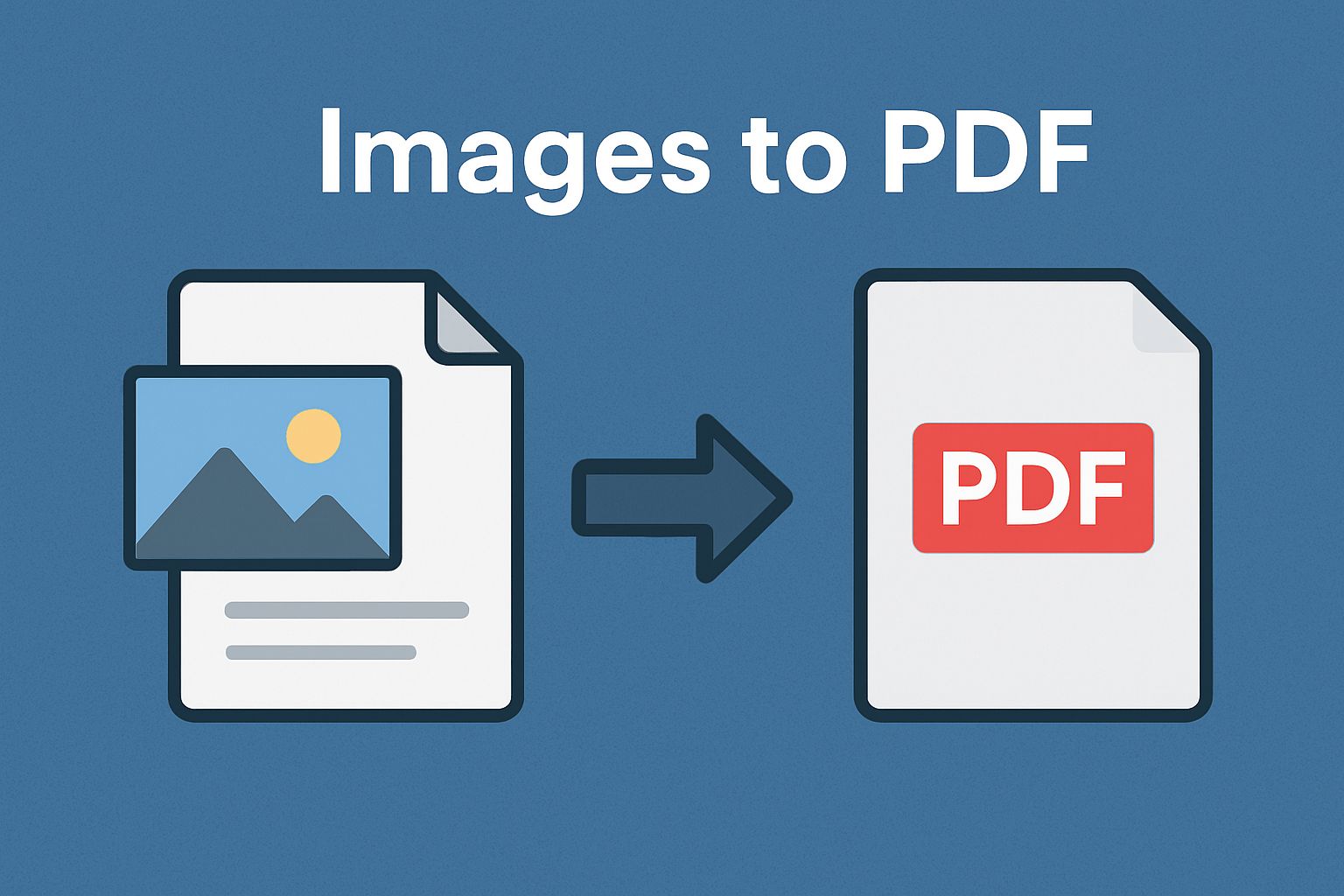
Scanned notes, saved receipts, a resume exported as an image — none of these are a document until they're a PDF.
FlexFiles JPG to PDF converts images into a single PDF and lets you set page size, quality, margins, and orientation before the file is created, not after.
Why Convert JPG to PDF
PDF opens the same way on every device, which is why students combine scanned pages into one file, job seekers present resumes and certificates in it, and businesses archive receipts and invoices this way instead of as loose images.
Page Size, Set Before You Convert
Pick a standard size like A4 so the result matches what's expected for printing — school assignments, office reports, anything that needs to come out consistent on paper. Setting it up front beats resizing after the fact.
Quality, Matched to the Job
High quality preserves detail — useful when you're sending design samples. Medium quality keeps the file smaller without losing readability — enough for lecture notes. You choose per conversion, not a fixed default.
Margins and Orientation
Margins keep images from looking cramped or cut off — worth setting for resumes or anything meant to look finished. Orientation matters too: portrait suits text, landscape suits wide charts or panoramic photos. Set it once instead of rotating pages manually afterward.
How to Convert
- Upload your JPG images.
- Choose a page size, like A4.
- Pick image quality: low, medium, or high.
- Set margins if you need them.
- Choose orientation: portrait or landscape.
- Preview, then download.
Conclusion
Converting JPG to PDF isn't just changing the file extension — it's what makes a set of images read as one finished document. FlexFiles JPG to PDF gives you the controls to make that happen the first time, not after a reprint.