Files
How to Convert PDF Documents to JPG Images Using FlexFiles
Try it yourself
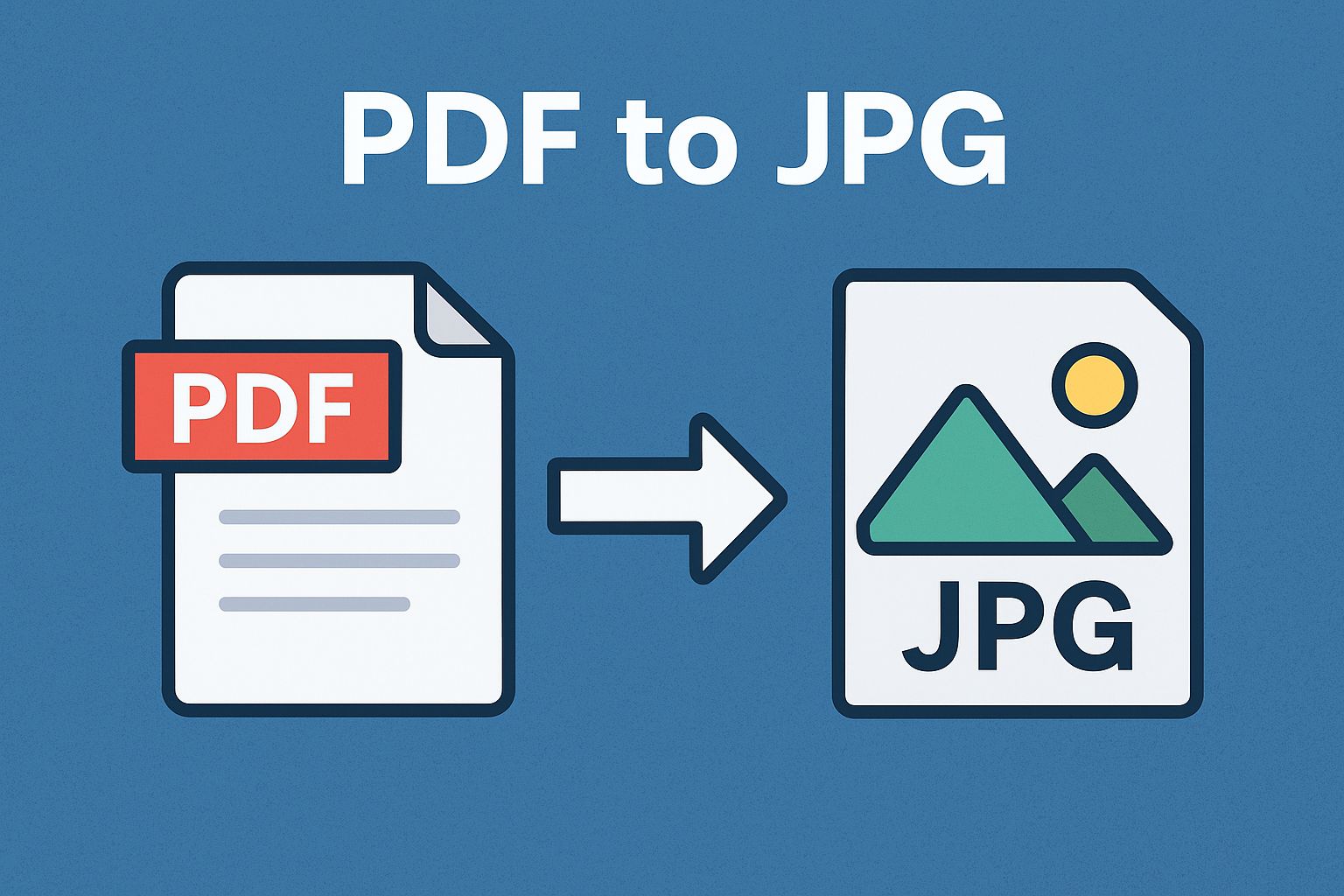
A PDF page you need as an image — for a slide, a social post, a design file — shouldn't require opening the whole document in something heavier than your browser.
FlexFiles PDF to JPG converts whichever pages you choose into high-resolution images, right there.
Why This Comes Up
PDFs are built for fixed formatting, not for dropping into a slide deck or a social post. JPG is the format that actually works there — lightweight and supported everywhere.
How to Convert
- Upload your PDF.
- Choose which pages to convert — all of them, or specific ones using ranges like 1,3,5-7.
- Preview the output.
- Download the images, or generate a link to share them.
What You Get
- High resolution — pages convert at their original quality, not a compressed guess.
- Selective conversion — pick exactly the pages you need, not the whole document.
- Multiple files at once — convert several PDFs in the same pass.
- No install — runs in the browser on desktop or mobile.
Managing the Result
Download the images directly, or share a link with a password or expiry attached. Everything you've converted stays trackable, so you're not hunting for a file you made last week.
Where This Gets Used
- Pulling a page out of a PDF to use on a website or blog.
- Turning report pages into slides for a presentation.
- Sharing a single page from a document on social media.
- Extracting a chart or diagram for a design project.
Conclusion
A PDF page and an image are two different jobs — FlexFiles PDF to JPG turns one into the other in seconds, exactly the pages you need.