Portfolio PDFs That Click: Link Sections, Projects, and Case Studies
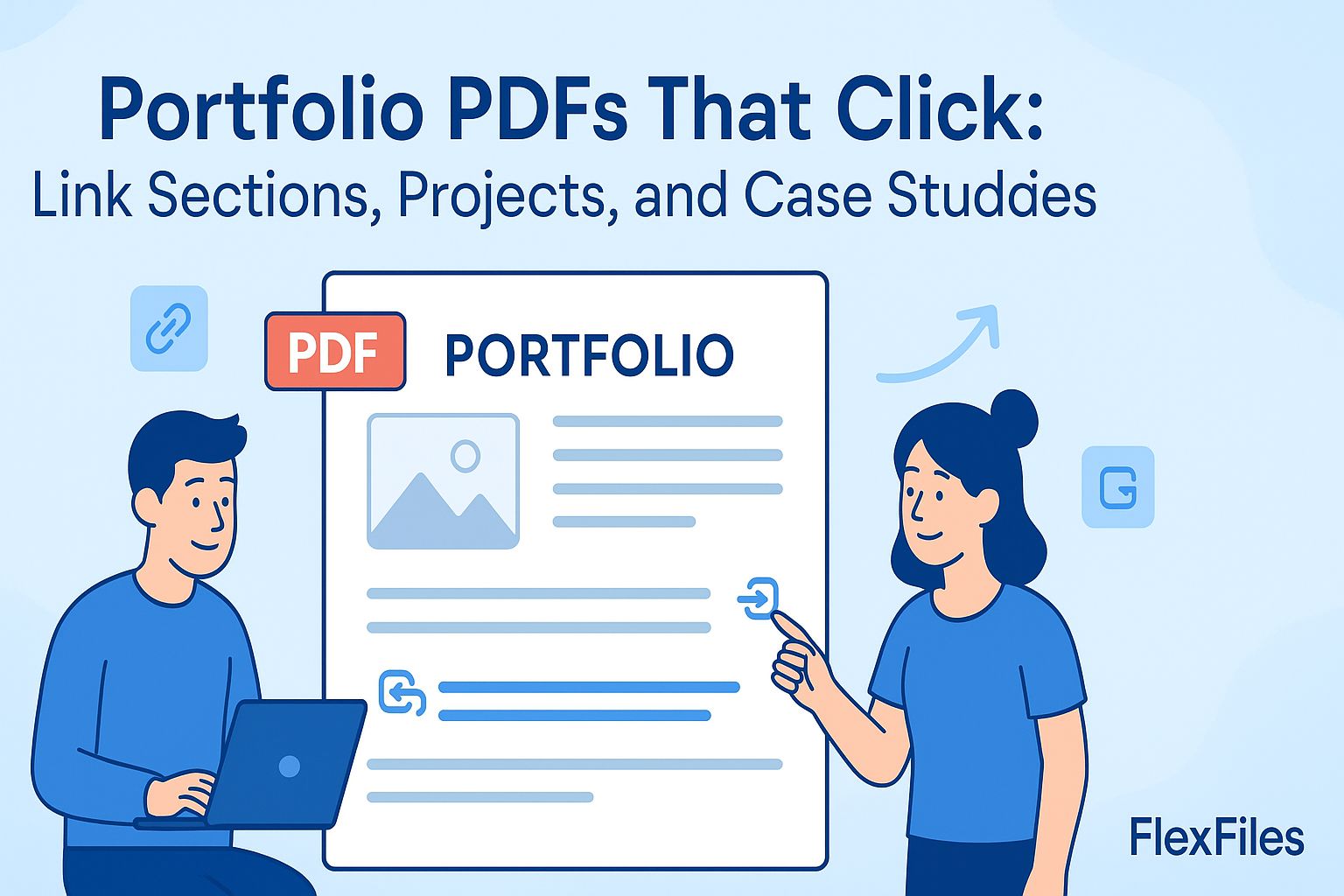
A recruiter or client skimming a portfolio doesn't scroll page by page — they click to whatever proves your point fastest. A static PDF makes that harder than it needs to be.
FlexFiles PDF Editor lets you turn headings, thumbnails, and section titles into clickable links, in your browser.
Why Links Change How a Portfolio Reads
A long PDF without navigation forces a reader to scroll through everything to find the one project that matters to them. Links turn that into a guided path — a table of contents at the front that jumps straight to the right page.
What to Link
- A table of contents at the front, linking to each project or section.
- Project thumbnails that jump to the full case study.
- A "back to contents" link at the end of each section, so navigation works both ways.
- External references — a live site, a GitHub repo, a video — where relevant.
How to Add the Links
- Upload your portfolio PDF.
- Select the link tool.
- Draw the clickable area over the heading or thumbnail.
- Set the destination — another page in the same PDF, or an external URL.
- Repeat for each section, then preview and test every link.
Keeping It Clean
Don't over-link — a few clear paths beat a dozen options on every page. Test every link before sending the file out; a broken link in a portfolio undercuts the polish you're going for.
Conclusion
A portfolio that's easy to navigate gets read further than one that isn't. FlexFiles makes the linking part quick, so the content can do the rest of the work.